Introduction
If you’ve encountered the URL g.co/playcontinue, you may have wondered what it means and why it appears when you’re using services related to Google Play. Essentially, g.co/playcontinue is a Google-created URL designed to help users complete actions such as purchases, app downloads, and subscriptions on a different device. This is especially useful in scenarios where actions started on a TV, smart device, or other platforms with limited input options, need to be finalized on a more accessible device like a smartphone or computer.
In this article, we’ll dive into what g.co/playcontinue is, why it appears, how it works, and how you can make use of it to complete tasks across devices smoothly.
What is g.co/playcontinue?
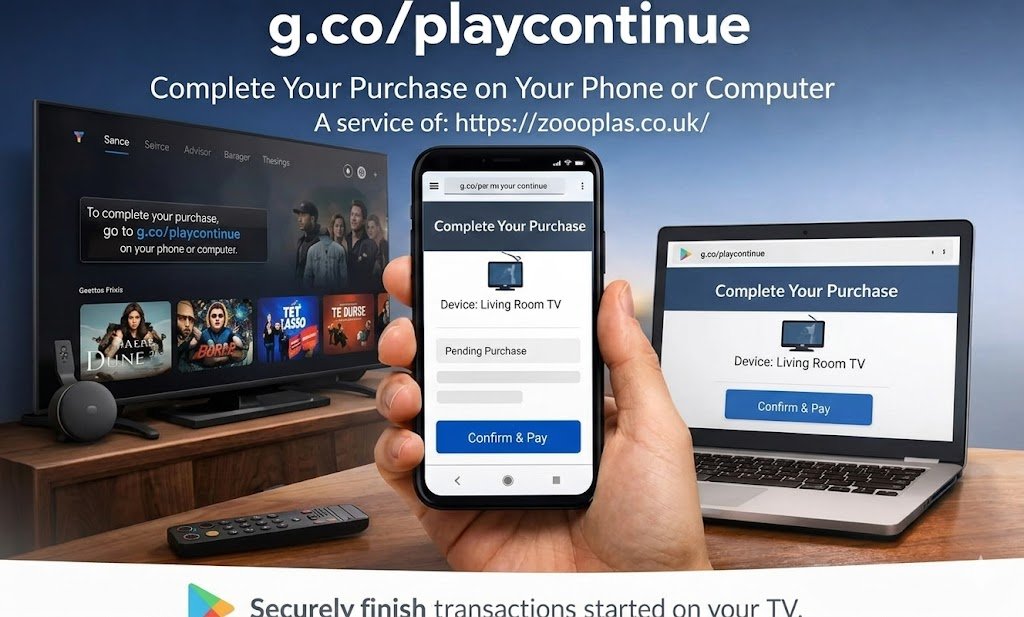
g.co/playcontinue is a shortened URL created by Google to help users complete Google Play transactions that were started on one device and need to be finished on another. For example, if you initiate an app purchase, download, or subscription on a smart TV but encounter input issues or interruptions, g.co/playcontinue directs you to a web page or Google Play interface on another device, where you can finalize the action.
This link essentially acts as a bridge, allowing you to pick up where you left off, regardless of the device you’re using.
Why Does g.co/playcontinue Appear?
You will often encounter g.co/playcontinue when:
1. Completing a Purchase
If you’ve initiated an app purchase, media buy, or subscription service (such as Disney+, Peacock, or Paramount+) on a device like a Smart TV or console, but it can’t be completed there due to input limitations, g.co/playcontinue will direct you to your phone or computer to finalize the transaction.
This is helpful because TVs or consoles are not always equipped to handle detailed forms of input like typing billing details, so Google allows you to finish the action on another device.
2. Resuming Interrupted App Downloads
Sometimes app installations or updates on devices like smart TVs can be interrupted due to connection issues or device limitations. In such cases, g.co/playcontinue helps users continue downloading apps or content from another device.
3. Cross-Device Continuity
Google Play offers continuity across devices. For example, if you’re watching content or playing a game on your TV, but need to finish it on your phone, g.co/playcontinue will direct you to a page where you can resume the activity.
4. Verification of Account Information
When confirming payments, Google Play might ask for verification of payment details or a quick authentication process, especially if the purchase was made on a device that requires additional security or verification.
How Does g.co/playcontinue Work?
If you see g.co/playcontinue, follow these simple steps to complete your task:
Step 1: Open a Device Where You’re Signed In
Make sure to use a smartphone, tablet, or computer that’s signed into the same Google account that was used for the initial action.
Step 2: Visit g.co/playcontinue
Type g.co/playcontinue in the address bar of your browser. It will automatically redirect you to the appropriate Google Play page to finish what you started.
Step 3: Follow the Instructions
Once redirected, you may be asked to sign in again (if not already logged in). Then, follow the on-screen instructions to confirm the purchase, resume the app download, or verify your subscription.
Step 4: Return to Your Original Device
Once the action is complete, your original device (e.g., TV or tablet) should reflect the changes, like an app being downloaded, a subscription activated, or a payment processed.
Using g.co/playcontinue on Different Devices
On iPhone or iPad
If you’re using an iPhone or iPad, opening g.co/playcontinue in your browser will direct you to a Google Play page where you can complete your transaction, download, or subscribe. Even though Google Play services are more commonly used on Android devices, the link works across iOS as well, allowing for seamless cross-device activities.
On Android Devices
Since Android is the operating system for Google Play, using g.co/playcontinue on an Android phone or tablet is simple. It will redirect you to Google Play, where you can continue your purchase or app installation.
On Smart TVs and Other Devices
When you encounter g.co/playcontinue on a Smart TV or other devices, it’s often because the device lacks input capabilities (like a keyboard for entering payment details). Instead, use a phone, tablet, or computer to complete the action, which can often involve confirming a payment method or signing into Google Play.
Common Services Linked to g.co/playcontinue
g.co/playcontinue frequently appears when using services like:
- Disney+ — Subscriptions and purchases via Google Play.
- Peacock — Completing streaming service sign-ups or content purchases.
- HBO Max — Activating subscriptions or managing billing.
- Discovery+ — Subscribing or confirming service setup via Google Play.
- Google Play — Completing app installations, purchases, and updates.
- Paramount+ — Managing subscriptions or purchases via Google Play.
In these cases, the link allows you to finish transactions and setup steps without hassle.
Is g.co/playcontinue Safe?
Yes, g.co/playcontinue is safe. It’s an official link managed by Google and part of the Google Play system. The g.co domain is owned by Google and used for legitimate redirects to Google Play content. However, make sure that you type the URL correctly to avoid phishing sites, as attackers could misuse slight variations of the link.
Safety Tips:
- Always ensure the link reads exactly as g.co/playcontinue.
- Confirm that it starts with https:// to indicate it’s secure.
- Avoid clicking on links from untrusted sources that look similar to g.co/playcontinue.
Troubleshooting g.co/playcontinue Issues
1. Blank Page or Error
If the page doesn’t load, try refreshing your browser. You may also need to sign into the correct Google account that is linked to the action you were performing.
2. Device Not Syncing
Sometimes, the action you completed on one device may take a few minutes to sync with your original device. Try restarting the app or device to ensure the change has been applied.
3. Not Redirecting Properly
If g.co/ playcontinue doesn’t take you to the right page, check the spelling of the URL, ensure you’re signed into the correct Google account, or try clearing your browser’s cache.
Conclusion
g.co/ playcontinue is a helpful and secure way to continue and complete Google Play activities across different devices. Whether it’s a subscription, purchase, app download, or billing verification, this redirect link streamlines your experience by allowing you to finish tasks on a device that’s easier to navigate, such as your phone or computer.
By understanding how g.co/ playcontinue works, you can seamlessly handle transactions and continue your Google Play experiences without interruption — no matter the device you’re using.